Time Dilator v2.2
Speed up or slow down the passage of time at the click of a button. This blueprint version of the classic Tempus Imperium mod allows you to change the rate at which time passes to suit your circumstances.
Required mods: Blueprint Apparate Modloader
Features
- Increase or decrease the rate at which time passes.
- Reset the rate to the default.
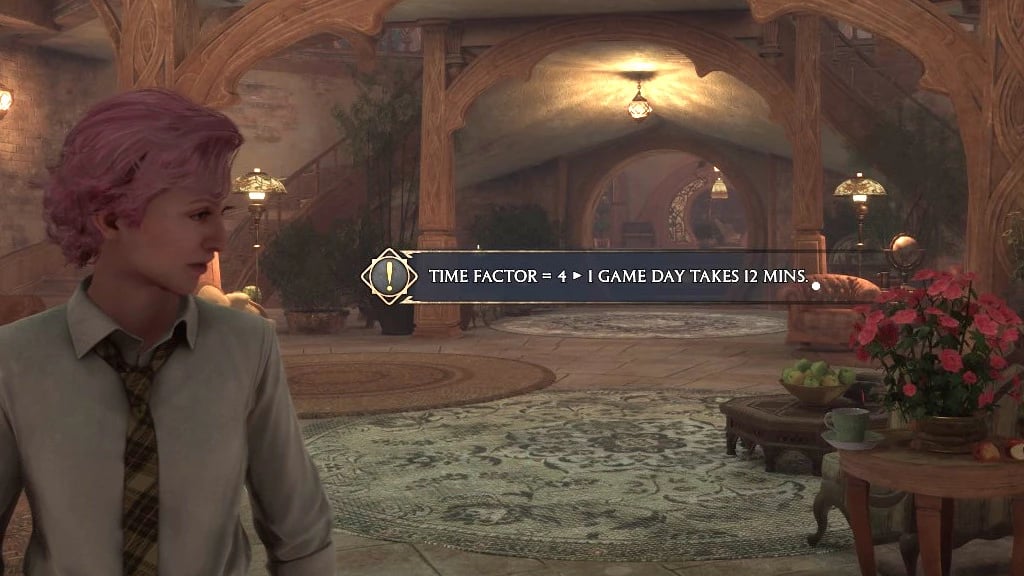
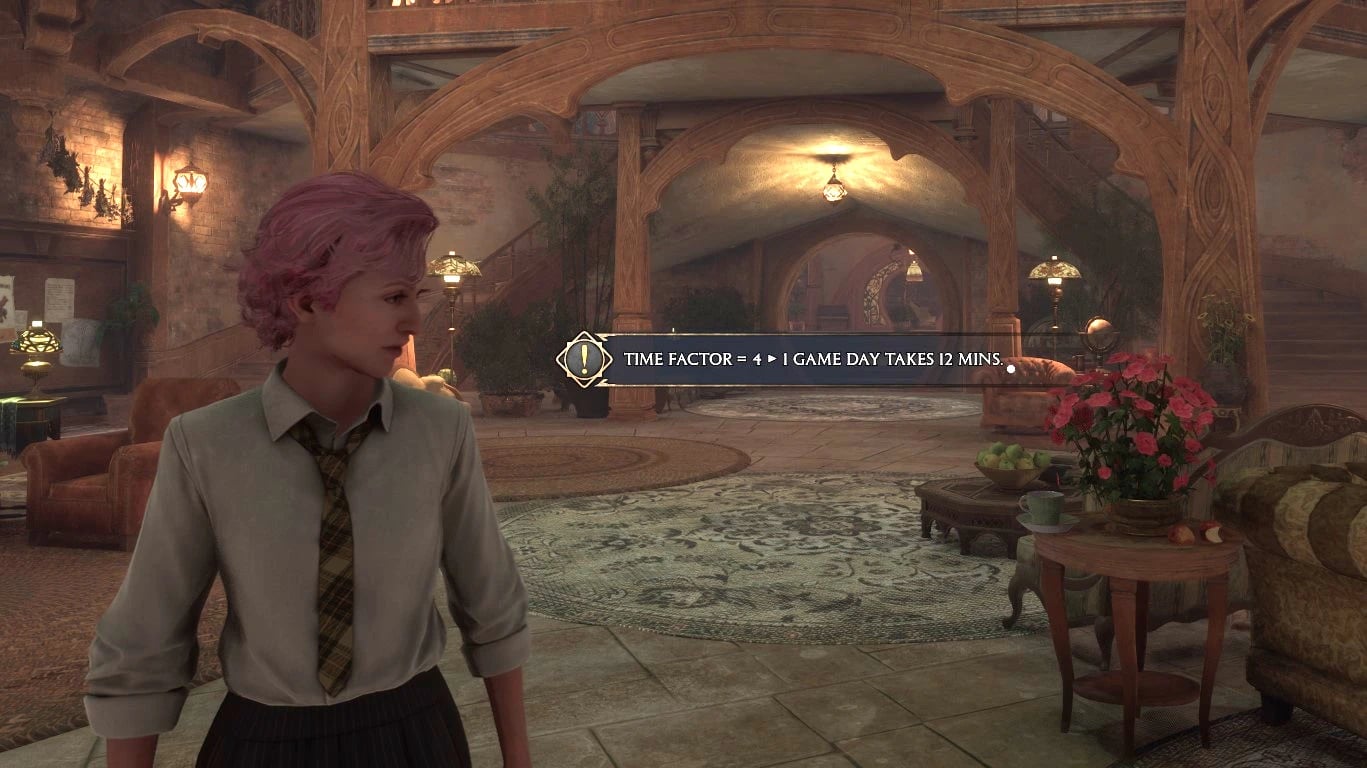
- Display the current time factor on-screen.
- Set 1 game day to 1 real day.
Specifications
- By default, 1 game day in Hogwarts Legacy passes in 48 real-world minutes.
- The mod uses pakchunk 1021.
Installation
You should be able to install the mod automatically using Vortex, then skip to step 4 below. Vortex can be a bit unreliable with Hogwarts Legacy mods because it does not always delete mods properly, so manual installation is recommended:
- Download the mod.
- Unzip the contents.
- Move the
utoc,.ucas, and.pakfiles to theSteamsteamappscommonHogwarts LegacyPhoenixContentPaks~modsfolder. - Install Blueprint Apparate Modloader if you have not already.
- Start Hogwarts Legacy.
- Load your most recent save-file.
- Press the
F8key to activate Blueprint Apparate Modloader. - Type
TimeDilatorin the little window and hit theEnterkey on your keyboard. - The word
TimeDilatorshould disappear and reappear lower down in that window with an X next to it. If it does not, and stays on the top line, either you put the.utoc,.ucas, and.pakfiles in the wrong folder, or one of your existing mods is already using pakchunk 1021. Use the PakChunk Checker to check that. If you have a pakchunk conflict, see the Conflicts section below. - Press
F8again to close the modloader window. - Press
CTRL-NUMPAD5to confirm that the mod is working. You should see the current time factor displayed on-screen. If not, make sure you have NUMLOCK switched ON and try again.
You only need to follow the above process once. From now on the mod will just work.
Controls and keys
By default this mod uses the following key bindings:
ALT-NUMPAD8= Increase the current rate at which time passes by the TimeDilationScaleFactor.ALT-NUMPAD5= Reset the rate at which time passes to the default, 1 game day = TimeDilationDefaultMinutes real minutes.CTRL-NUMPAD5= Display the current rate at which time passes.CTRL-ALT-NUMPAD5= Set 1 game day = 1 real day.ALT-NUMPAD2= Decrease the current rate at which time passes by the TimeDilationScaleFactor.
You can increase or decrease the rate as many times as you like.
Settings and configuration
From v2.2 onwards this mod offers the following configuration variables:
TimeDilationScaleFactor= The amount by which time dilation increases or decreases. Default = 2, so the rate doubles or halves.TimeDilationDefaultMinutes= The default number of real minutes that pass in one game day. Default = 48.
To change the default values, add the following to your C:Users\AppDataLocalHogwarts LegacySavedConfigWindowsNoEditorEngine.ini file and change the numbers as you see fit. TimeDilationScaleFactor must be > 1.0 and <= 3.0:
[/Game/CustomContent/TimeDilatorConfig.TimeDilatorConfig_C]

TimeDilationScaleFactor=1.5

TimeDilationDefaultMinutes=60
For example, the values above will:
- Increase or decrease the rate at which time passes by a factor of 1.5 when you press
ALT-NUMPAD8orALT-NUMPAD2. - Set 1 game day = 60 real minutes the next time you press
ALT-NUMPAD5.
Custom key bindings
You can change the key bindings to anything you like as follows:
- Download and install the latest version of this mod, start the game, do the F8 thing if you have not already, load a save file, then shut down the game.
- In Windows Explorer, type
%localappdata%Hogwarts LegacySavedConfigWindowsNoEditorinto the address bar at the top and hit Enter. - Left click
Input.ini, then right click it and select “Edit” or “Open with” > “Notepad”. - Search for
TimeDilator. You should find five entries like those below. - Change the items shown in green below to whatever you want. Key names can be found here.
- Restart the game.
ActionMappings= (ActionName="TimeDilator_DecreaseTimeFactor",bShift= False,bCtrl= False,bAlt= True,bCmd= False,Key= NumPadTwo,GroupName="",SortIndex= 0)

ActionMappings= (ActionName="TimeDilator_DisplayTimeFactor",bShift= False,bCtrl= True,bAlt= False,bCmd= False,Key= NumPadFive,GroupName="",SortIndex= 0)

ActionMappings= (ActionName="TimeDilator_IncreaseTimeFactor",bShift= False,bCtrl= False,bAlt= True,bCmd= False,Key= NumPadEight,GroupName="",SortIndex= 0)

ActionMappings=(ActionName="TimeDilator_Set24hTimeFactor",bShift=False,bCtrl=True,bAlt=True,bCmd=False,Key=NumPadFive,GroupName="",SortIndex=0)

ActionMappings= (ActionName="TimeDilator_ResetTimeFactor",bShift= False,bCtrl= False,bAlt= True,bCmd= False,Key= NumPadFive,GroupName="",SortIndex= 0)
Uninstallation
Either:
- If you installed it via Vortex, disable or uninstall it via Vortex. Also check that it is gone from the
~modsfolder afterwards. - Delete the
.utoc,.ucas, and.pakfiles from the~modsfolder.
Conflicts
This mod uses pakchunk 1021. You can check if that conflicts with any of your existing mods by running the PakChunk Checker batch script after you have installed this mod. If it does conflict, you can fix it using the Chunk ID Conflict Manager.
Known issues
When you adjust the Time Factor, the screen will flash briefly. This has been minimised, but cannot be removed entirely.